Submit your VAT return in 3 steps
This guide walks you through checking your VAT obligations, entering your figures, and submitting to HMRC.
New here? Request a free day pass on the Bundles page — no pass needed, and you get 3 free VAT submissions to try it out.
1 Check Your VAT Obligations
Before submitting, check which VAT periods HMRC expects returns for. Open obligations show periods where you haven't yet submitted.
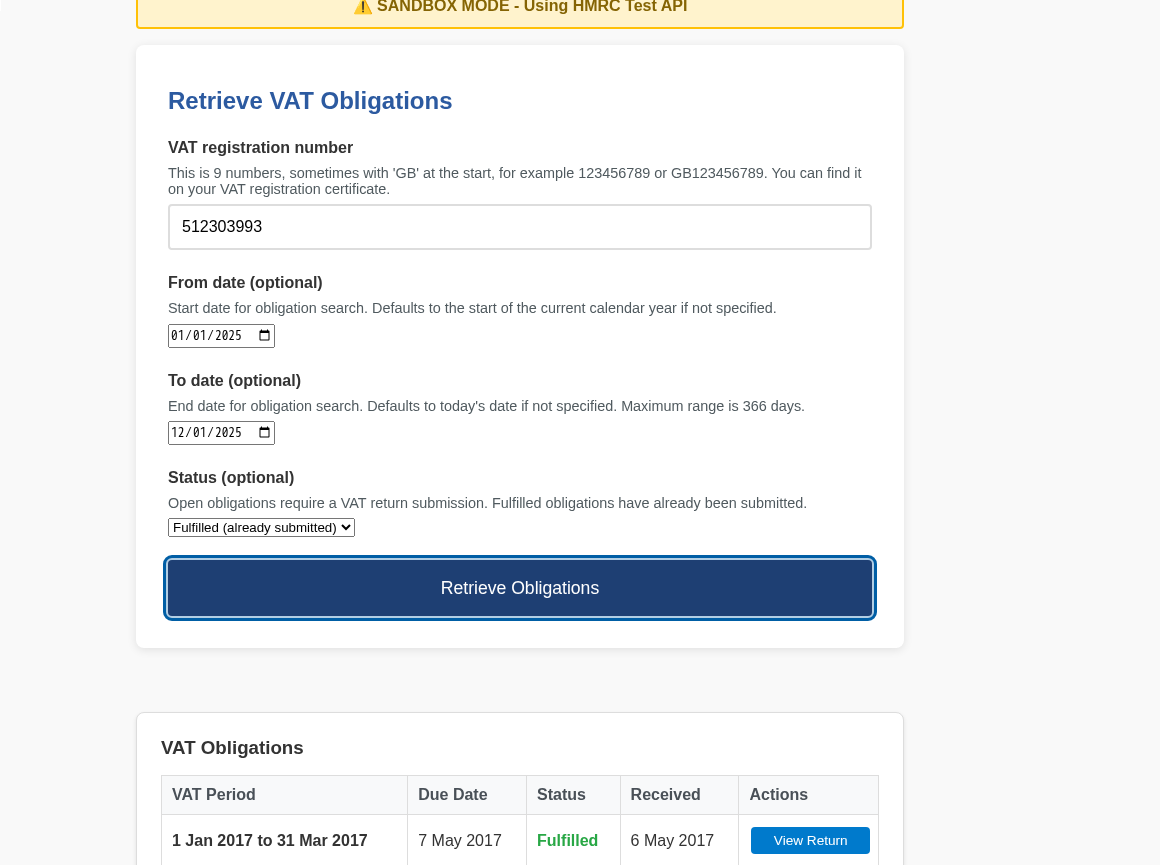
How to check obligations
- Click Check VAT Obligations from the home page
- Enter your 9-digit VAT registration number
- Adjust the date range if needed (defaults to the current year)
- Click Retrieve Obligations
- Look for periods with Open status - these need returns
2 Submit Your VAT Return
Enter your VAT figures in Boxes 1-9. Boxes 3 and 5 calculate automatically based on your other entries.
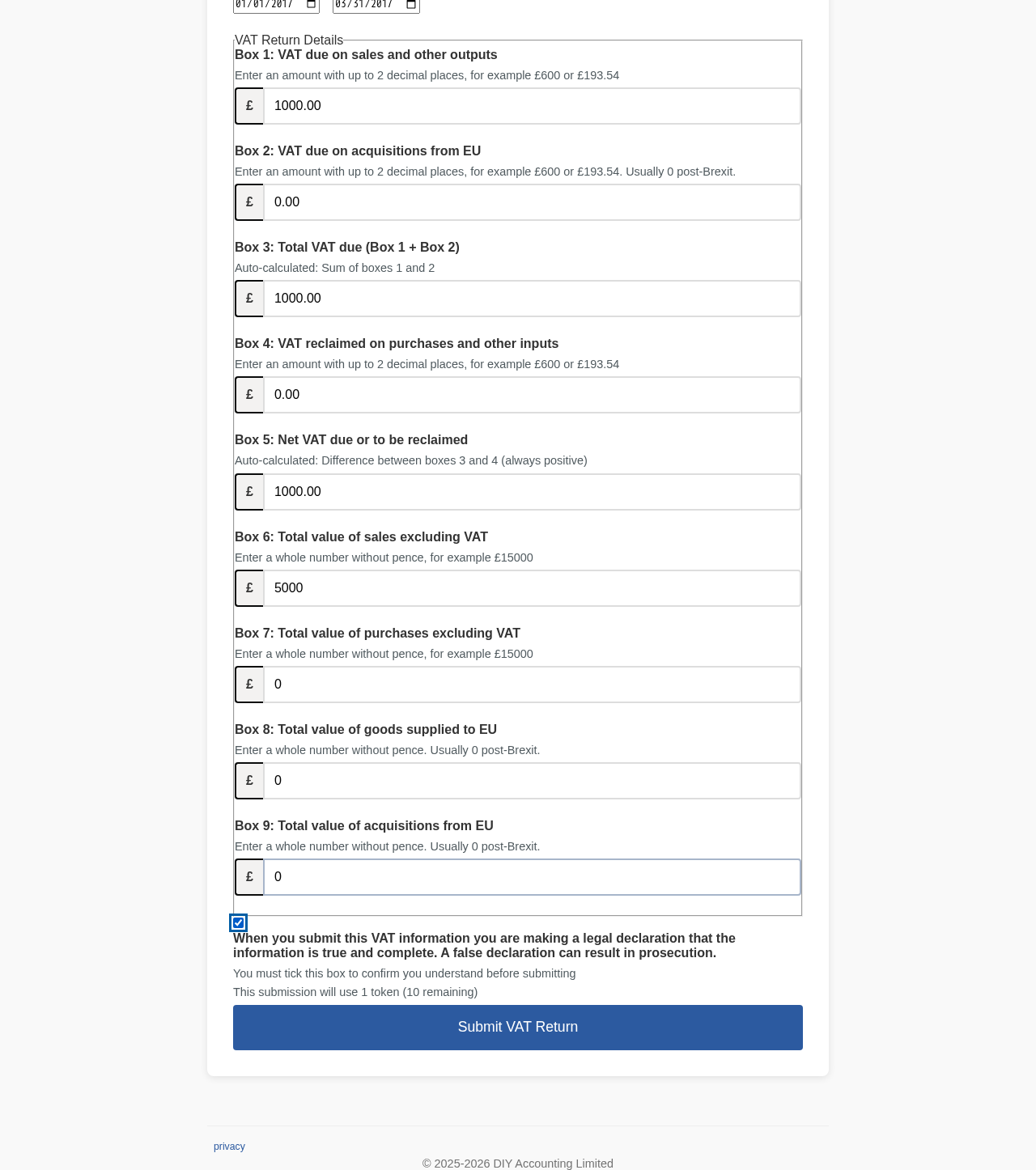
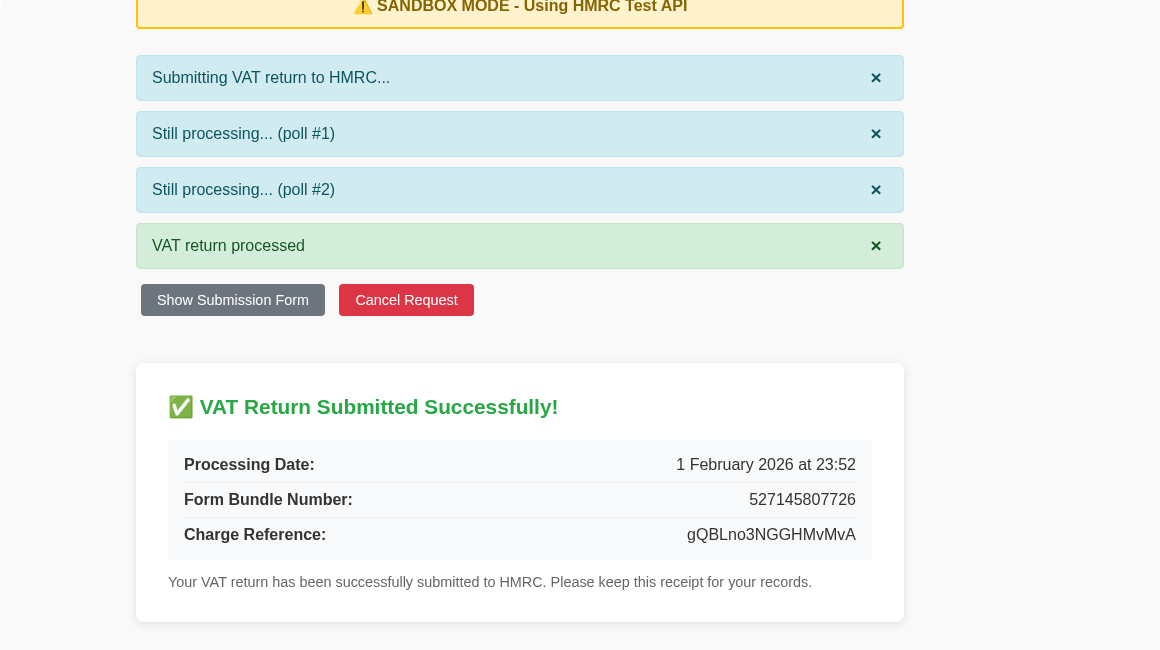
How to submit your return
- Click Submit VAT Return from the home page
- Enter your VAT registration number and select the VAT period
-
Enter your figures:
- Box 1: VAT due on sales and other outputs
- Box 2: VAT due on acquisitions from EU (usually £0)
- Box 4: VAT reclaimed on purchases and other inputs
- Boxes 6-9: Turnover and EU trade values (whole pounds)
- Tick the declaration checkbox to confirm the information is true
- Click Submit - you'll be redirected to HMRC to authorise
- Log in with your Government Gateway credentials and grant permission
- Save your receipt showing the Form Bundle Number
3 View Your Submitted Return
After submission, you can retrieve your return from HMRC to verify the figures were recorded correctly.
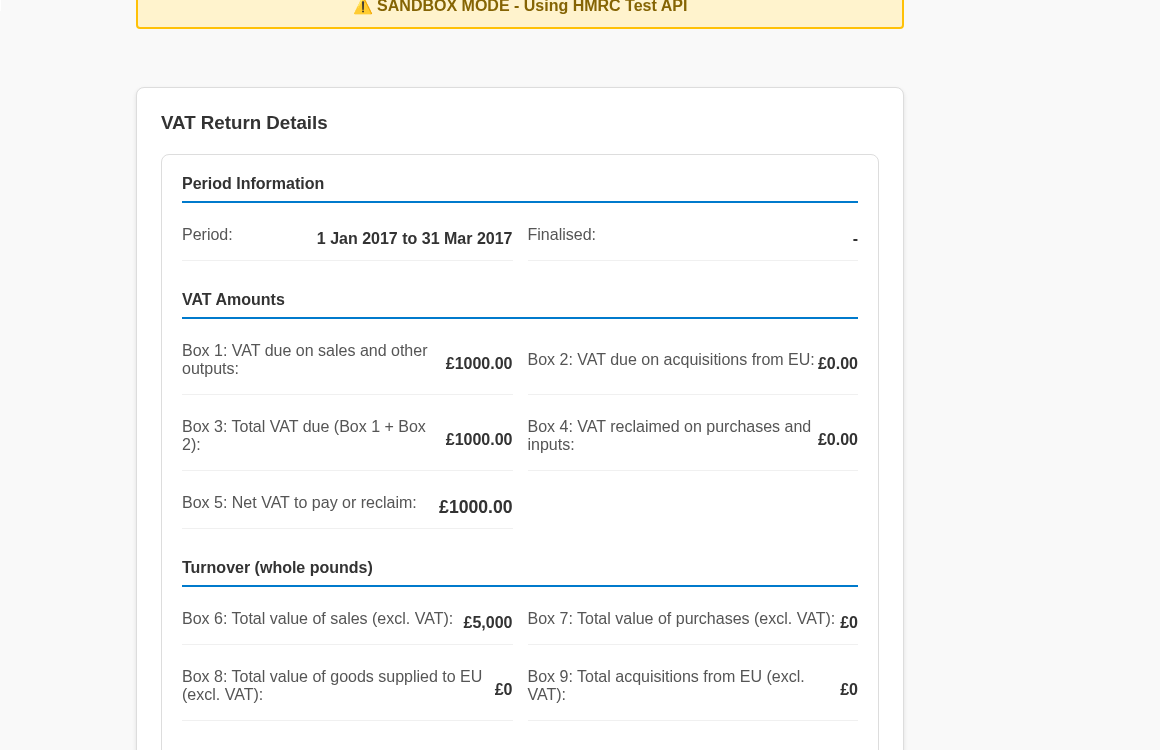
How to view a submitted return
- Click View VAT Return from the home page
- Enter your VAT registration number
- Select the period you want to view
- Click Retrieve to see HMRC's record of your return
Finding Your Receipts
Your submission receipts are saved securely in your account. Access them anytime from the Receipts link in the navigation bar to see your submission history.
Important notes about receipts
- Receipts are stored securely in your account and accessible from any device
- Log in to view your submission history
- Your receipt includes the Form Bundle Number - quote this to HMRC if you ever need to prove submission
Checking Your VAT Liabilities
VAT Liabilities shows the VAT charges HMRC has raised against your account, with the original and outstanding amounts owed.
How to check liabilities
- Click VAT Liabilities from the home page
- Enter your 9-digit VAT registration number
- Adjust the date range if needed (defaults to the current year)
- Click Retrieve Liabilities
- Each row shows the charge type, original amount, outstanding amount, and due date
Checking Your VAT Payments
VAT Payments shows the payments HMRC has recorded against your account, with the amount and the date each was received.
How to check payments
- Click VAT Payments from the home page
- Enter your 9-digit VAT registration number
- Adjust the date range if needed (defaults to the current year)
- Click Retrieve Payments
- Each row shows the amount and the date it was received, or "Pending" if not yet received
Checking Your VAT Penalties
VAT Penalties shows any late submission or late payment penalties HMRC has recorded against your account in the last 24 months. There is no date range to choose - HMRC always returns the trailing 24 months.
How to check penalties
- Click VAT Penalties from the home page
- Enter your 9-digit VAT registration number
- Click Retrieve Penalties
- A summary shows your active and inactive penalty points; two tables list late submission and late payment penalties